


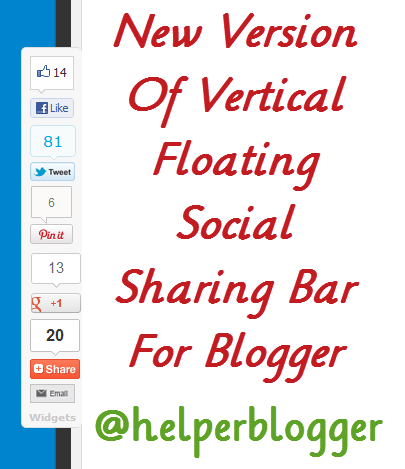
There were so many requests on this post asking me to update the floating share buttons with Pinterest Pin it button. But I wasn’t on Pinterest then and never gave gave it much consideration…I said to myself it’s just a new, obscure social network that’s going to fade away in no time. I was wrong! Pinterest has grown to be the third largest social network in the world after Facebook and Twitter and that got me thinking where the heck is Google +! Pinterest can be a real source of traffic if well used and this is a proven fact. Ignoring the potential of Pinterest in driving traffic to your site and exposing your content to a wider audience isn’t such a wise idea.

This new floating share buttons is quite similar to the one I posted last year but the tweet button is changed and Pinterest “Pin it” button is now included. Other buttons included are StumbleUpon, Digg, Google +1 and Facebook share.
Adding these floating share buttons to your blog is a sure way to drive more traffic to your posts as users visitors find it easier using the fixed buttons. It’s a clear message asking them they should share the post 
Adding the Floating Share Buttons to Blogger
- Log in to Blogger and go to Template > Edit HTML
- Check the box labelled Expand Widgets Template
- Search for
<data:post.body/> or <div class='post-footer-line post-footer-line-1'/>
- In the line just below that, paste this code:
<b:if cond='data:blog.pageType == "item"'>
<!--Start Floating Share Buttons with Pinterest doncaprio.com-->
<style type='text/css'>
#pageshare {position:fixed; bottom:15%; right:10px; float:left; border: 1px solid black; border-radius:5px;-moz-border-radius:5px;-webkit-border-radius:5px;background-color:#eff3fa;padding:0 0 2px 0;z-index:10;}
#pageshare .sbutton {float:left;clear:both;margin:5px 5px 0 5px;}
.fb_share_count_top {width:48px !important;}
.fb_share_count_top, .fb_share_count_inner {-moz-border-radius:3px;-webkit-border-radius:3px;}
.FBConnectButton_Small, .FBConnectButton_RTL_Small {width:49px !important; -moz-border-radius:3px;-webkit-border-radius:3px;}
.FBConnectButton_Small .FBConnectButton_Text {padding:2px 2px 3px !important;-moz-border-radius:3px;-webkit-border-radius:3px;font-size:8px;}
</style>
<div id='pageshare' title='Share with your friends'>
<div class='sbutton' id='fb'>
<a href='http://www.facebook.com/sharer.php' name='fb_share' type='box_count'>Share</a><script src='http://static.ak.fbcdn.net/connect.php/js/FB.Share' type='text/javascript'/>
</div>
<div class='sbutton' id='rt'>
<script src='http://tweetmeme.com/i/scripts/button.js' type='text/javascript'/>
</div>
<div class='sbutton' id='gplusone'>
<script src='https://apis.google.com/js/plusone.js' type='text/javascript'/>
<g:plusone size='tall'/>
</div>
<div class='sbutton' id='gb'>
<a class='pin-it-button' count-layout='vertical' expr:href='"http://pinterest.com/pin/create/button/?url=" + data:post.url'>Pin It</a>
<a href='javascript:void(run_pinmarklet())' style='margin-left:-46px; width:43px; height:20px; display:inline-block;'/>
<script src='http://assets.pinterest.com/js/pinit.js' type='text/javascript'/>
<script type='text/javascript'>
function run_pinmarklet() {
var e=document.createElement('script');
e.setAttribute('type','text/javascript');
e.setAttribute('charset','UTF-8');
e.setAttribute('src','http://assets.pinterest.com/js/pinmarklet.js?r=' + Math.random()*99999999);
document.body.appendChild(e);
}
</script>
</div>
<div class='sbutton' id='su'>
<script src='http://www.stumbleupon.com/hostedbadge.php?s=5'/>
</div>
<div class='sbutton' id='digg' style='margin-left:3px;width:48px'>
<script src='http://widgets.digg.com/buttons.js' type='text/javascript'/>
<a class='DiggThisButton DiggMedium'/>
</div>
<br/>
<div style='clear: both;font-size: 8px;text-align:center;'><a href='http://www.doncaprio.com/2012/05/adding-floating-share-buttons-with-pinterest-pin-it-for-blogger.html' style='text-decoration: none;' target='_blank'><font color='#816D77' decoration='none'>Get widget</font></a></div><!-- Do not remove this link -->
</div>
<!--End Floating Share Buttons with Pinterest doncaprio.com-->
</b:if>
- Now save your template.
This widget will only be shown in post pages because I couldn’t find a way to make the Pinterest button work on all pages. If you want the floating share buttons to appear on the left side of your post, find and change
#pageshare {position:fixed; bottom:15%; right:10px; to this:#pageshare {position:fixed; bottom:15%; left:10px;
If you’re on WordPress, Digg Digg plugin is a pretty nice alternative and you don’t need to do any hard coding. Like this Widget? Kindly share it!


